OfficeCalendar saves you money!
|
|

November 14, 2006
Forward a Contact via an Email Message
Have you ever wanted to send one of your Outlook contact's information to a colleague
or coworker, but without typing in all their information in manually into the body
of an email? Well now you can! Use Microsoft Outlook to forward any Outlook contact
to someone else as an attachment in an email message.
Here's another useful tip for using Microsoft Outlook…
-
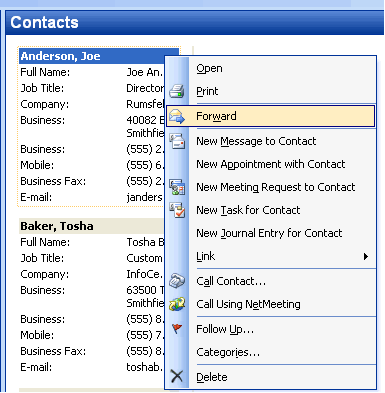
Select the contact you wish to forward in your Contacts Folder.
-
Right-click on the selected contact, and choose Forward from the menu.
-
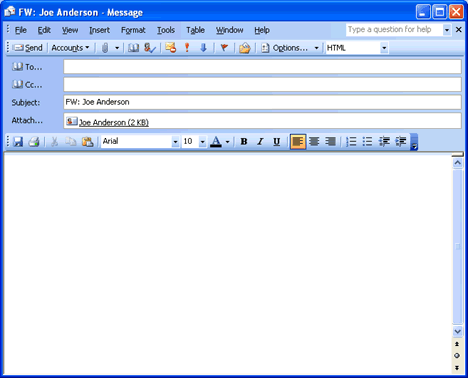
A new email message will automatically be created with the contact as an attachment.
-
Address the email message as you would with any normally, and click Send upon completion.
-
As soon as the message is delivered, all the recipient has to do is drag the contact attachment to either the Contacts icon in the Outlook Shortcuts bar, or to their Contacts Folder. The contact will automatically be added to their Outlook Address Book.
Bonus Tip:
You can also email several contacts at once using the same steps. However, to select
multiple contacts, hold down the Control key and click on each
contact you want to forward. After you have selected all of the desired contacts,
right-click on one of them and select Forward Items. Then follow
the remaining steps to finish.
Look for next month's newsletter, when we share another handy trick for using Outlook.
|
|
Microsoft and the Office logo are trademarks or registered trademarks of Microsoft Corporation in the United States and/or other countries.