OfficeCalendar ScheduleFusion™ group calendar and scheduling architecture
OfficeCalendar not only offers an effective low-cost and easy-to-use alternative to Microsoft® Exchange Server for sharing Microsoft Outlook calendar, contact and task information; but also offer powerful group calendaring and scheduling capabilities that even Microsoft Exchange Server doesn't offer.
The OfficeCalendar ScheduleFusion™ group calendar and scheduling architecture includes a set of easy-to-use group calendar features combined with an intelligent workflow process. In its most simple terms, this group calendaring system gives users the ability to create unlimited customizable interactive group calendars.
OfficeCalendar's ScheduleFusion™ process for group calendars includes the following features and built-in processes:
- Create unlimited group calendar folders
- Supports users/resources to be in more than one group calendar
- "In Group" and "View Group" group calendar configuration
- Fully integrated group calendar security
- User-based folder selection preferences
- On-the-fly multi-user/resource scheduling
- Intelligent cross calendar appointment roll-up
OfficeCalendar's interactive group calendars
With OfficeCalendar, administrators can create and name multiple group calendars, select the users/resources that are displayed in the associated group calendar(s), and assign who the group calendar(s) will be visible to. Furthermore, a user and/or resource can be in and/or view more than one group calendar. OfficeCalendar's new group calendars have also been designed to enforce user security rights defined for each user in OfficeCalendar's Administration Console. This offers a wide array of possibilities, and makes scheduling faster, easier and more intuitive for today's modern organizations comprised of specialized groups, teams, departments, etc.
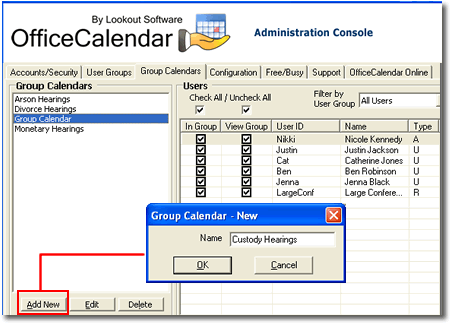
The following features further enhance OfficeCalendar's all new interactive group calendars.
OfficeCalendar Group Calendars and Interactive Group Scheduling
Say goodbye to the old static, read-only, group calendar found in the older versions of OfficeCalendar and say hello to interactive group calendars. Not only can you create an unlimited number of group calendars; users, with the proper security rights, can now add, edit and delete items directly from within any OfficeCalendar group calendar. We've also added the ability to create an appointment for two or more users/resources at once for fast, on-the-fly group scheduling from within MicrosoftOutlook.
We've created a series of screen shots below to demonstrate some of OfficeCalendar's new group calendaring and scheduling features.
Creating appointments in an Outlook group calendar folder
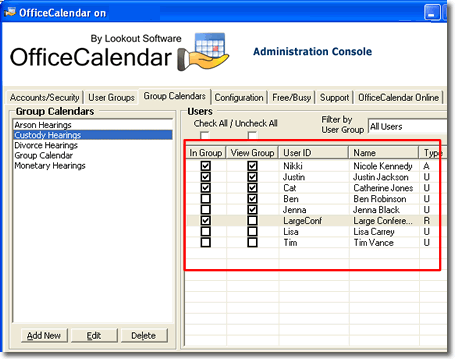
Before we get into the interaction of a group calendar, let's explain how our sample group calendar "Custody Hearings" is set up in the Group Calendars configuration screen from within the OfficeCalendar Server and Administration Console. The Group Calendars configuration screen allows you determine whose appointments will appear within a specified group calendar and who can see a specified group calendar.
The screenshot below shows those users and resources whose appointments will be included in the highlighted "Custody Hearings" group calendar (In Group option checked); and those users that can view and interact with the highlighted "Custody Hearings" group calendar (View Group option checked). Nicole, Justin and Catherine all have both In Group and ViewGroup options selected.
Ben and Jenna only have the View Group option selected. The resource user LargeConf (Large Conference Room) only has the In Group optionselected.
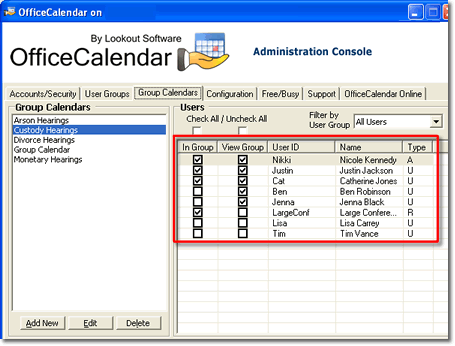
Essentially, here's how the "Custody Hearings" group calendar will work for each user with the configuration shown in the above screen:
- Nicole, Justin and Catherine – their appointments will be displayed in the group calendar "Custody Hearings". They'll also have ability to view and interact (add, edit, delete appointments as specified by their defined security rights) with the "Custody Hearings" group calendar.
- Ben and Jenna – appointments from their calendars will not appear in the "Custody Hearings" group calendar. However, they will be able to interact (add, edit, delete appointments as specified by their defined security rights) with the "Custody Hearings" group calendar.
- LargeConf (Large Conference Room) – the appointments from this resource user will appear in the "Custody Hearings" group calendar. This will help those users that can interact with the group calendar to schedule meetings and/or appointments more efficiently by seeing availability of users and resources simultaneously. Because OfficeCalendar resource users are not physical Outlook users, they will never need View Group status for a group calendar.
- All other users – because all other users in the example configuration for the "Custody Hearings" group calendar above have neither In Group nor View Group options selected for their user account, their appointments will not be included in this group calendar nor will they have the ability to see this group calendar from within their Outlook folder list.
Once you have created a group calendar from within the OfficeCalendar Server and Administration Console, all users that have the View Group option selected will see the group calendar appear in their Outlook Calendar folder list upon their next OfficeCalendar synchronization as it was named by the OfficeCalendar administrator; in this case, it will appear as "Custody Hearings".
The screenshot below shows the newly created "Custody Hearings" group calendar in Nicole's Outlook Calendar folder list upon her first OfficeCalendar synchronization after the "Custody Hearings" group calendar was added by the OfficeCalendar administrator.
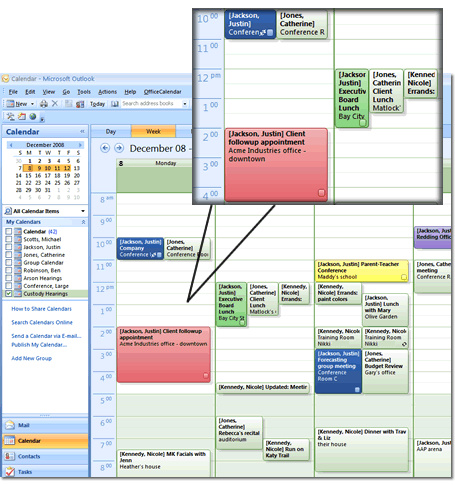
Users can create appointments in a group calendar the same way they would create an appointment in any other Outlook Calendar folder. In the example below, Nicole will create an appointment in the group calendar "Custody Hearings".
To add an appointment, Nicole types in the relevant appointment information just like she would in any other Outlook Calendar folder.
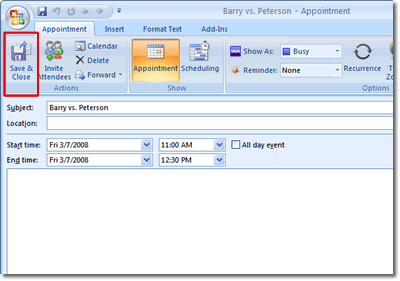
However, upon saving the appointment, Nicole is prompted by OfficeCalendar from within Outlook with a message asking her if the appointment is for another user.
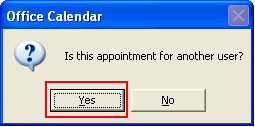
If Nicole selects Yes, another dialog box will appear allowing her to select one or more users associated with the new appointment. The only users and resources available for selection are those users and resources that have been configured as In Group within the Group Calendars configuration screen (in the OfficeCalendar Server and Administration Console).
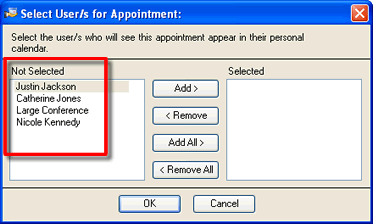
For this example, Nicole needs to create an appointment for Justin and Catherine. But, she also needs to book the Large Conference Room for this time as well. She's already seen that the Large Conference Room is available for this time, while Justin and Catherine have no appointments scheduled at that time either; so she selects each of them and clicks the Add button; and clicks OK.
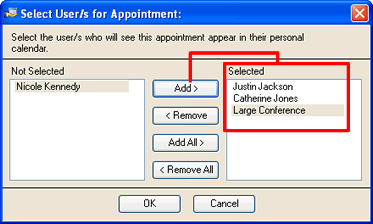
The appointment Nicole created is now added to the "Custody Hearings" group calendar three times; once for each specified user/resource showing the name of the user or resource in which the appointment is associated in brackets next to appointment's subject.

Once Nicole has synched with the OfficeCalendar Server, the new appointments that were added to the "Custody Hearings" group calendar get processed and will now show in all associated calendar sub-folders.
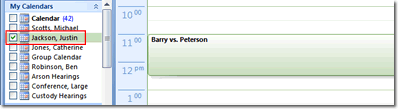
Appointments created in a group calendar folder also roll into each selected users' individual Calendar folder. The next two screens show how the original appointment created in the "Custody Hearings" group calendar rolls into Justin's individual Calendar folder as well as how it rolls into the individual Large Conference Room's Calendar folder.
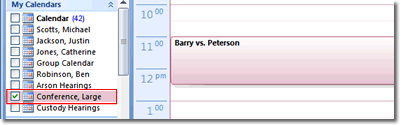
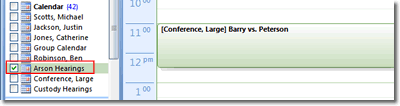
Because a user's and/or resource's appointments can be in more than one group calendar, appointments created in one group calendar for a specified user will also appear in all other group calendars in which the user's appointments appear in as well. In our example, the resource user LargeConf's (Large Conference Room) appointments also appear in another group calendar named "Arson Hearings". The screenshot below shows how the appointment for the Large Conference Room in which Nicole created in the "Custody Hearings" group calendar rolls into the "Arson Hearings" group calendar after the OfficeCalendar synchronization processed it.
Modify appointments in a group calendar folder
Users can modify appointments in a group calendar just as they would modify any other appointment in Outlook. After an appointment is modified, it is updated in the associated group calendar folder as well as the associated user's individual calendar and any other group calendar folder(s) the user is included in.
Delete appointments in a group calendar folder
Users can delete appointments in a group calendar just as they would delete any other appointment in Outlook. After the appointment is deleted from the group calendar, it is also deleted in the associated user's individual calendar and any other group calendar folder(s) in which the user's appointments are included.
"View Group" & "In Group" calendar functions
"View Group" Calendar
OfficeCalendar administrators can assign users the ability to View Group, so only those selected users are able to view a selected group calendar folder. If only this option is selected, the user's appointments will not be included in the selected group calendar folder even though the user is able to view and interact with the selected group calendar.
"In Group" Calendar
On the other hand, OfficeCalendar administrators can also select which users' appointments will be included in a selected group calendar folder. If only this option (In Group) is selected, the user's appointments show within the associated group calendar, but the user will not be able to view the group calendar from within their Outlook Calendar folder list.
Example user scenarios for "View Group" Calendar & "In Group" Calendar
- User is "In Group" Calendar and can "View Group" Calendar
This is the most frequently used setting. A good example is a law firm, in which
case the attorneys not only need to be included in the group calendar, but they
also need to view the group calendar to see who is available for court appearances
and other scheduling matters.
- User is NOT "In Group" Calendar but can "View Group" Calendar
This calendar setting is useful, for example, if a secretary whose personal appointments
do not need to be on a calendar for scheduling, but she needs to see everyone else's
appointments in order to schedule appropriately.
- User is "In Group" Calendar but CANNOT "View Group" Calendar
This would be appropriate, for example, if an exterminator's office needs all field
agents' appointments on a calendar so their secretary can schedule appropriately.
However, the field agents do not necessarily need to see the group calendar for
all other agents.
- User is NOT "In Group" Calendar and CANNOT "View Group" Calendar This setting would
apply to a user who might be included in other group calendars, but does not have
any reason to be included or see a certain group calendar that is meant for other
users.
Group calendar security
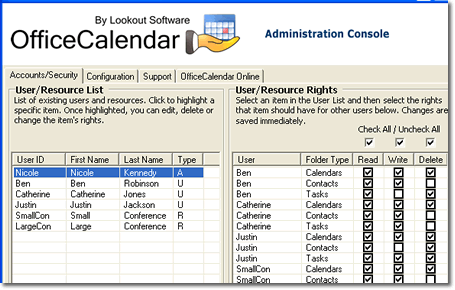
OfficeCalendar takes user security rights one step further to ensure comprehensive group calendar security. The same security rights that OfficeCalendar administrators assign to users will now apply to any group calendar folder(s) they are associated with. For example, if User A and User B are both able to View Group Calendar #1 and are In Group Calendar #1, User A will not see User B's appointments if User A does not have the appropriate security rights.
New folder selection feature allows each user to streamline their individual Outlook folder list
OfficeCalendar adds the ability to select which group calendars and other user folders you wish to view in your Outlook folder list, allowing each user individual control over their folder list within Microsoft Outlook.
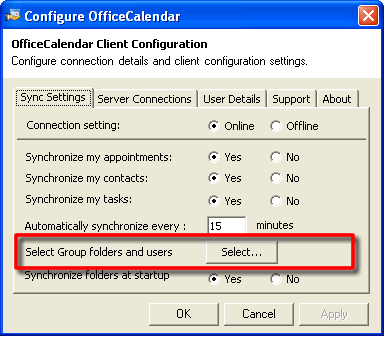
For example, if a user has been granted the right to view the "Audit" group calendar as shown in the sample screenshot below, he/she can choose not to view it in their Outlook folder list by un-checking it in Select Synchronization Objects . However, although a user may choose not to view a selected group calendar folder, his/her Outlook data will still be available to others viewing a group calendar in which their appointments are included.
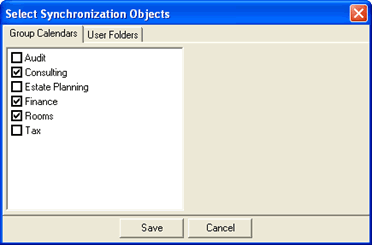
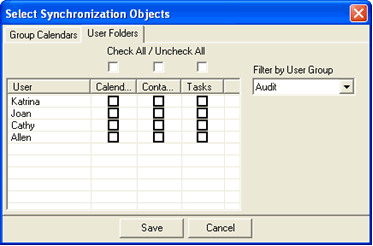
This new user-based preference feature also becomes practical for users that have access to several group calendar folders as well as all other users' individual Calendar folders. To help clean up and organize your Outlook Calendar folder list, you may choose to only view group calendars and not individual user calendars. Downsizing the list of Calendar folders you view also improves synchronization speed if OfficeCalendar does not have to update all available Calendar folders while synchronizing with Microsoft Outlook.
Additional OfficeCalendar Resources
|